
Webvalix Live Chat Platform Guide
Learn how to instantly connect with Webvalix support through the Live Chat platform.
WEBSITES
8/23/20251 min read
Webvalix Live Chat Platform Guide
One-line summary: Learn how to instantly connect with Webvalix support through the Live Chat platform.
Audience & Prerequisites
Who this is for: Any Webvalix visitor or customer who needs quick support.
What you need before you start:
Internet connection.
A web browser (Chrome, Safari, Edge, or Firefox).
Estimated time: Less than 1 minute to start a chat.
What is the Webvalix Live Chat Platform?
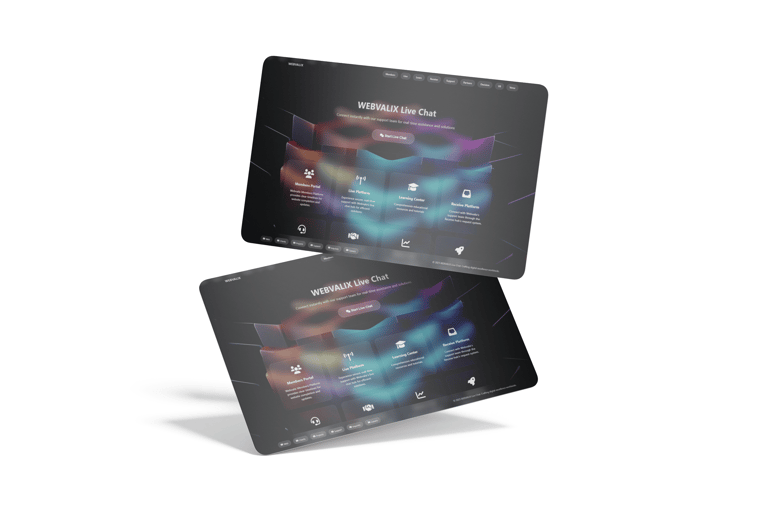
The Webvalix Live Chat Platform (live.webvalix.com) allows you to connect directly with Webvalix support in real time. It’s designed for fast communication — whether you have a question, need technical help, or want to discuss a service.
Quick Start (2 steps)
Go to live.webvalix.com.
Click Start Live Chat, type your message, and begin chatting.
Full, Step-by-Step Instructions
1) Visit the Platform
Open your browser and go to live.webvalix.com.
2) Start a Chat
On the homepage, press the Start Live Chat button.
A chat window will open instantly.
Type your message and press Enter to send.
3) Connect with Support
A Webvalix team member will join the chat.
You can:
Ask questions about services.
Request project updates.
Get technical or billing assistance.
Notes & Best Practices
Keep your questions clear and specific.
For faster resolution, include your Webvalix account email or project ID when relevant.
Use professional language for smoother communication.
Troubleshooting
Problem Likely cause Fix Chat window doesn’t open Browser issue or disabled pop-ups Enable pop-ups, refresh page No response All agents are busy Wait a few minutes, or try again later Lost chat history Page refresh or disconnect Reopen live.webvalix.com and start a new chat
FAQs
Q: Do I need to log in to use Live Chat?
A: No, anyone can start a chat directly.Q: Is Live Chat available 24/7?
A: Availability may vary, but messages can be left if no agent is online.
What’s Next
[Guide: Using the Members Portal for Project Tracking]
[Guide: Resetting Your Members Portal Password]
Style Notes
Language: Neutral, global-friendly English.
Tone: Quick, direct, and supportive.
Version History
v1.0 – 2025-08-23: Initial publication